Buying Shipping Labels
For dynamic shipping orders only. You buy a label through the platform to ship the item.
How It Works
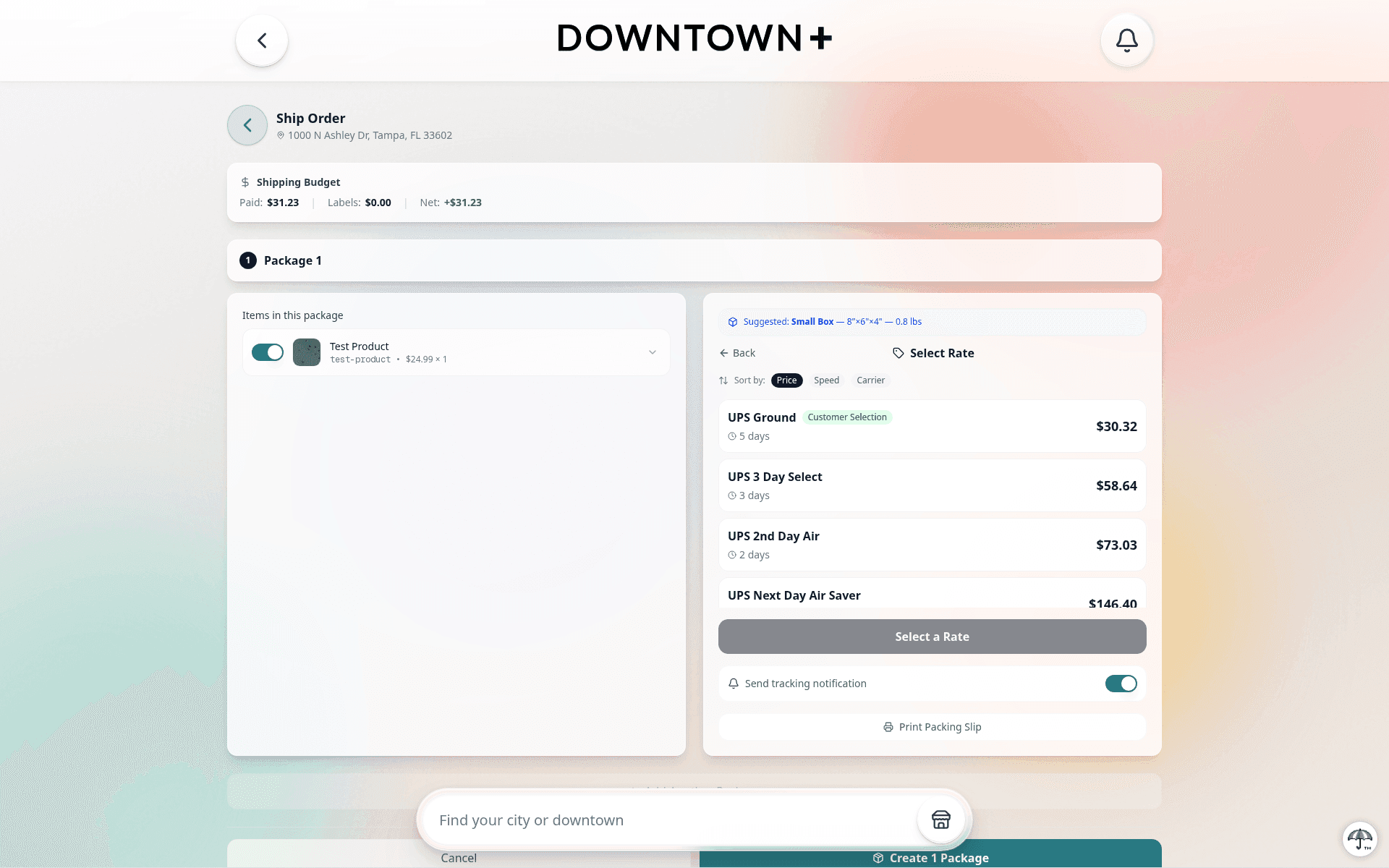
- Open the order and click "Buy Label"
- Get rates from available carriers
- Select your carrier and speed
- Authorize payment (a hold is placed on your Stripe account)
- The carrier creates your label. You are only charged once the label is successfully created
- Download and print the label
Important Notes
- Speed enforcement: You must match or exceed the shipping speed the customer selected at checkout
- Label cost is billed separately to your Stripe account, not deducted from the sale
- No charge on failure: If the carrier cannot create the label (address issue, speed mismatch, carrier error), the authorization is released and you are not charged
- Manual fallback: If label purchase fails (or if your account is suspended for outstanding shipping adjustments), you can ship manually with your own tracking number
- Mixed orders: If a package contains any dynamic shipping item, label purchase is required for that entire package, even if other items in the package use flat or free shipping
- Preparing phase: Label purchase happens while the package is in the Preparing state, before you confirm and ship. This gives you time to buy, print, and pack before the customer is notified
- Voiding before confirmation: If you void a label before confirming the shipment, the entire package is cancelled. Items return to the awaiting pool so you can reassign them to a new package. The label's billing record is preserved for your records even after voiding
Heads up: Outstanding Shipping Adjustments
If your outstanding shipping adjustments balance reaches the suspended threshold, new label purchases are blocked until you pay the balance off. Your dynamic-shipping products are also temporarily hidden from the shop and can't be purchased until then, while your flat-rate, free, pickup, and digital products stay live. Existing orders and payouts are unaffected, and you can still ship your existing dynamic orders manually.
You'll see a red banner on your dashboard with a Pay Now button. See Fees & Payouts → Shipping Adjustments for how adjustments work, the three balance tiers, and how to pay them off.
Stalled & Exception Notifications
Downtown+ monitors carrier tracking events for all platform-purchased labels. If a package appears stalled in transit, hits repeated shipping exceptions, or is returned to sender, you'll get a notification on your dashboard. When that happens, review the order detail page and file a carrier claim if needed. The insurance coverage from the label purchase applies.
Carrier Insurance
Your shipment is insured. The declared value is automatically set to the sum of the items' sale prices (capped by the carrier's maximum). The insurance cost is shown as a separate line item in the label price breakdown before you confirm the purchase, so you always know exactly what you're paying for coverage.
If a shipment is damaged, lost, or never arrives, you can file a carrier claim directly from the order page. The claim form shows your coverage details based on the label's declared value and insurance: the carrier's base liability, the insurance you purchased, and the maximum coverage amount. It also pre-fills the carrier and tracking number from the shipment so you have full context before filing. See Handling Refund Requests for details.
Declared Value / Insurance
All carriers include free coverage up to $100 on every shipment. What happens at checkout depends on your order total:
- Under $100: You're automatically covered by the carrier's free base coverage. No action needed — you won't see a declared value input.
- $100 and over: A "Declare package value" toggle appears. It's on by default, with the dollar amount pre-filled to the retail total of your items.
When the toggle is on, you can edit the declared value. If your cost basis is lower than the retail price, entering a lower amount reduces the insurance surcharge. There's a "Reset to retail" link next to the input if you want to go back to the original total.
Turn the toggle off entirely to skip additional insurance and rely on the $100 free base coverage only. The insurance cost (if any) always shows as a separate line item before you confirm the purchase.
Saved Package Presets
If you've saved box dimensions in your shipping settings, a dropdown appears at the top of the Package Details step. Select a saved package and the length, width, height, and weight fields fill in automatically.
You can still edit any field after selecting a preset — the preset is just a starting point. To save new box dimensions, go to your vendor shipping settings.
Signature Confirmation
In the Package Details step, you can choose how the carrier handles delivery:
- No signature — Standard delivery. The carrier leaves the package at the door if it's safe to do so. Default for most shipments.
- Signature required — Any person at the address must sign. The carrier won't leave the package unattended.
- Adult signature (21+) — The recipient must show a photo ID proving they're 21 or older. Required for age-restricted items.
Signature options may add a small carrier surcharge, which is reflected in the rate total before you confirm.
Saturday Delivery
Saturday delivery is available on eligible UPS and FedEx services. When applicable, a Saturday delivery toggle appears in the Rate Selection step:
- Ground / Home Delivery: Saturday delivery is included at no extra cost on these services.
- Express services: A carrier surcharge may apply. The extra cost is reflected in the rate before you confirm.
The toggle only appears when Saturday delivery is eligible for the service you've selected. USPS does not offer a separate Saturday toggle — eligible USPS services already deliver on Saturdays by default.
Label Details & Cost Breakdown
After a label is purchased, the order detail page shows a collapsible cost breakdown for each package. It includes:
- Carrier shipping cost
- Insurance surcharge (if declared value was added)
- Platform processing fee
- Total charged to your Stripe account
Each label also has a Download Label button and a Track button. If a label was cancelled or voided, it shows as unavailable and the buttons are disabled.
Tracking URL Auto-Generation
For USPS, UPS, and FedEx shipments, the tracking URL is generated automatically from the tracking number. You don't need to enter anything — the Track button on the order detail page links directly to the carrier's tracking page.
If you're using DHL or entering a shipment manually under "Other", a tracking URL field appears so you can paste the link yourself.
Label Refunds on Approved Claims
When you file a shipping claim and Downtown+ approves it, your label charge is automatically refunded to the payment method on your Stripe account. You bought the label through the platform, the carrier paid us back, and we pass that through to you.
The refund covers the full label cost plus any insurance cost from the original purchase. Stripe processing fees are not included. Those are non-recoverable on Stripe's side. You'll see the exact refund amount in two places:
- Email notification — The approval email shows both the carrier payout amount and your label charge refund as separate line items
- Order page — The shipping claim panel on the order displays a "Label charge refunded: $X.XX" confirmation once the refund is processed
Allow 5–10 business daysfor the refund to reach your account. The timeline depends on your bank and Stripe's processing schedule.
The Downtown+ admin can opt out of the label refund when approving a claim. For example, if the shipping issue was caused by incorrect packing rather than a carrier failure. In that case, you'll still receive the carrier payout but your label charge stays as-is. The approval email makes clear whether the label refund was included.