Order Fulfillment
When customers buy your products, orders appear in your dashboard. Here's how to fulfill them.
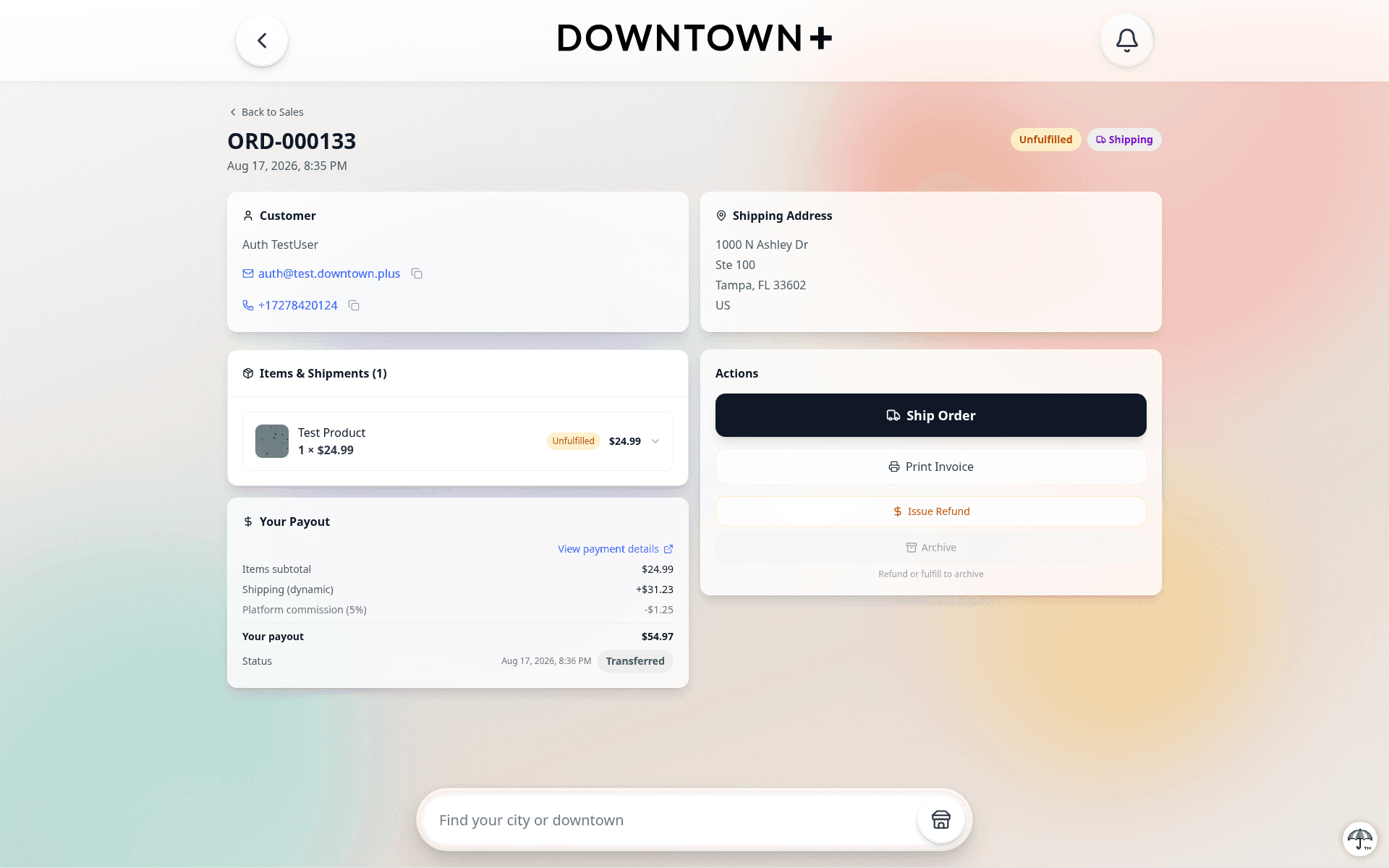
Shipping Orders
Shipping follows a two-step flow: create a package, then confirm and ship it.
- Open the order from your dashboard and go to the shipping page
- Create a package by selecting which items to include. The package starts in a Preparing state. Items are locked into the package but not yet fulfilled
- Dynamic shipping: Buy a shipping label through the platform. Flat/free shipping: Enter the carrier and tracking number
- When the package is ready, click "Confirm & Ship" from the shipping page. This fulfills the items, notifies the customer with a tracking email, and generates a packing slip
The Preparingphase gives you time to buy a label, print it, and pack the box before anything happens on the customer's end. No email goes out, no items are marked fulfilled, and no packing slip is generated until you explicitly confirm. You confirm from the shipping page, not from the order detail card.
If you need to cancel a package before confirming, void the shipping label (if one was purchased). Voiding a label during the Preparing phase cancels the entire package: the status changes to Voided and the items return to the awaiting pool so they can be reassigned to a new package.
On the order detail page, each shipped shipment shows a "Report shipping problem" button you can use if the package is damaged, lost, or never arrives. See Handling Refund Requests for details on how carrier claims work.
If you entered tracking manually (flat or free shipping), you can edit the carrier, tracking number, and tracking URL after shipping by clicking the edit button on the shipment card. You can also choose whether to notify the customer of the updated tracking. Shipments created from a purchased shipping label cannot be edited because the carrier and tracking number are set by the label provider. Delivered shipments are also locked.
Mixed Shipping Types
If an order contains items with different shipping types (e.g. some dynamic, some flat rate), each package enforces the rules of its items:
- Any package containing a dynamic shipping item requires label purchase. Items marked "Dynamic" will show a purple badge
- You can add flat/free items to a dynamic package. They ship together at the dynamic speed
- Packages with only flat/free items allow manual tracking entry as normal
- The customer's selected carrier and speed must be respected for dynamic items
When you ship a flat or free shipping order with a USPS, UPS, or FedEx tracking number, the platform automatically subscribes to tracking updates from that carrier. The customer sees the same tracking timeline and status pill as orders shipped with a purchased label. DHL and other carriers still show a Track Packagelink to the carrier's site, but no automatic updates.
Pickup Orders
- Prepare the item
- Mark as "Ready for Pickup" — the customer gets notified
- When they pick it up, mark as "Picked Up" to complete your portion of the order
On a multi-vendor order, the "Ready for Pickup" and "Picked Up"actions are scoped to your items only. Each vendor marks their own slice ready and picked up independently. You don't wait for other vendors, and they don't wait for you. Your pickup-ready email and customer notification mention only the items the customer is collecting from you. The order rolls up to Completed once every vendor has finished their side (all pickup vendors picked up, all shipping vendors shipped).
Digital Orders
- Auto-delivery — Fulfilled instantly, no action needed
- Manual delivery — Enter the download URL, then mark as fulfilled
Cancelling or Refunding an Order
Cancelling and refunding are the same action on Downtown+. The Actions panel on the order detail page has a single “Issue Refund” button (it reads “Issue another refund” once you have already refunded something on the order). There is no separate “Cancel Order”button — to cancel an order outright, open the refund page, select every item, and submit.
The button opens a dedicated refund page with a per-item picker. You turn on a Switch for each line you want to act on, and the platform chooses the right side effect per line based on its current fulfillment status:
- Unfulfilled items — Inventory is restored and the money is refunded. If a shipping label was already purchased and is still pre-transit, the same page has a separate card where you choose which labels to void and reclaim
- Fulfilled items — The money is refunded; inventory and shipping labels are left as-is
- Already-refunded items — Disabled in the picker so they can't be double-refunded
Because the partition happens per line, you can refund a fulfilled item and cancel an unfulfilled item on the same order in a single submission. Tax is reversed only on the specific units you selected. For items with quantity greater than one, use the stepper next to each line to choose how many units to refund.
A refund you start yourself is quantity-based: you pick the lines and the number of units, and the platform computes the amount. Per-item dollar adjustments are deliberately not offered here. They appear only when you are responding to a customer's refund request, where the review page lets you adjust each item to the amount you think is fair. See Handling Refund Requests for that flow.
Packing Slips & Archiving
Print Invoice is in the Actions panel on the order detail page. Packing slips are printed per package from the shipping page, where each package you build has its own Print Packing Slip button. Once an order is completed, you can archive it to keep your dashboard clean.
Fulfillment Deadlines
Shipping orders must be fulfilled within 30 days of payment.
You'll receive reminder emails as the deadline approaches and a final notice when it arrives. If an order isn't fulfilled by the deadline, it's escalated to platform review.