Handling Refund Requests
Every refund-related action (approving a customer request, denying it, requiring a return first, or issuing a proactive refund without being asked) happens on a single refund page at Account → Vendor Orders → Order → Refund. The page adapts to whatever state the request is in, so you only see the actions that apply right now.
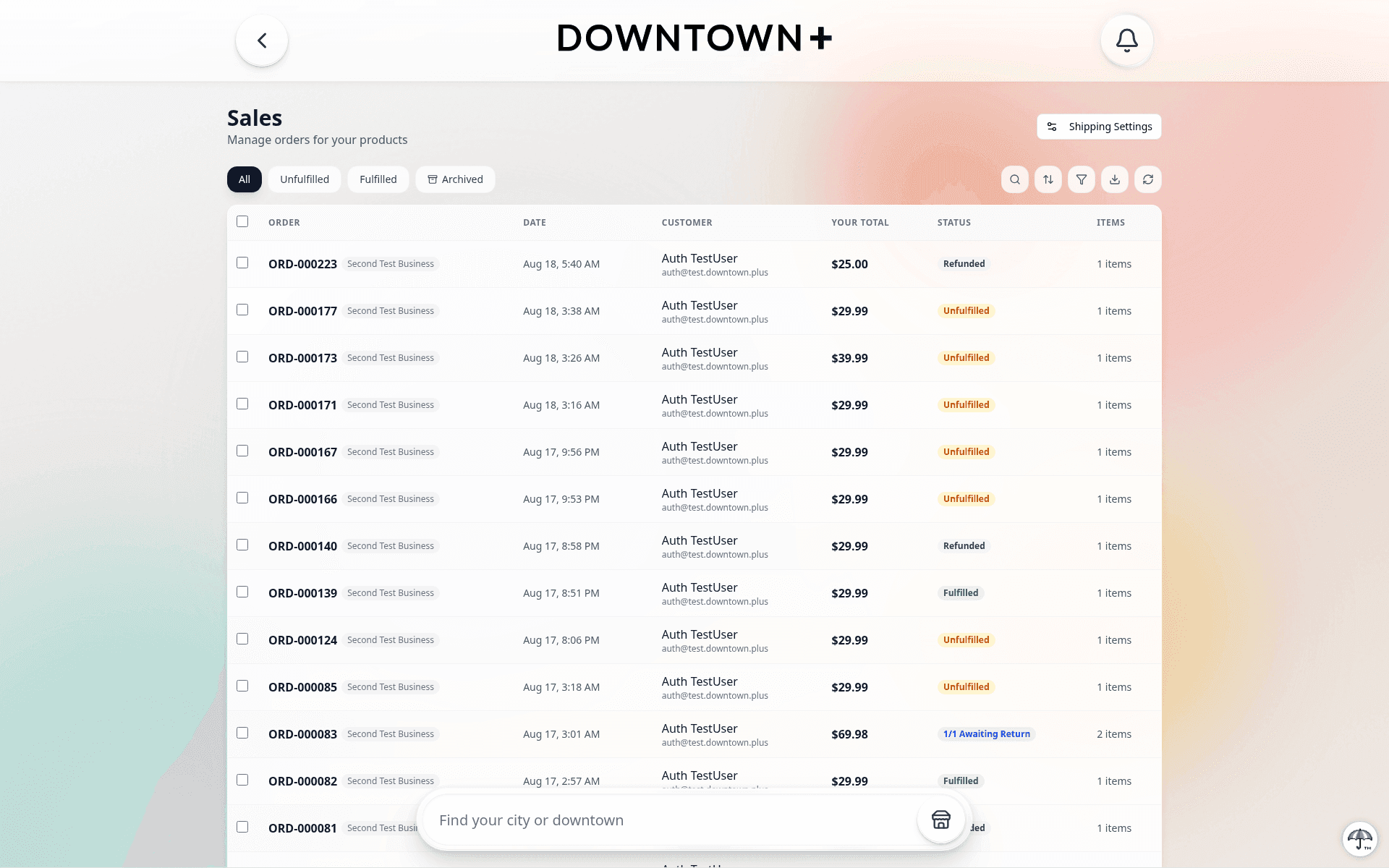
One Page, Every Path
Older versions of Downtown+ split refund work across several cards and dialogs. All of that has been consolidated. Whether you're responding to a customer's request or issuing a refund on your own, you work on the same page. Order status follows from what you do there. There is no separate cancel action. If a refund ends up covering every item on the order, the order is automatically marked Refunded. If it covers some items but not all, the order is marked Partially refunded.
Reviewing a Pending Customer Request
When a customer submits a refund request, the refund page shows a Customer request bannerat the top with the customer's note, the items they want to return, and the amount they asked for. The items picker below the banner is pre-filled with the customer's selections and the amount field is pre-filled with the amount they asked for, so the default “submit as is” flow is a single click.
The banner gives you three moves: approve and refund now, require a return first, or deny.
Approve & Refund Now
This is the default. The page starts in Refund nowmode with the items picker and refund amount pre-filled from the customer's request. Submitting at the pre-filled amount approves and refunds in one step. Money moves, the customer is notified, and the request closes.
Adjusting the Refund Amount
Every refund starts by selecting items in the picker. The page calculates the refund total from the items and quantities you chose. On orders where every item shares the same tax treatment, an optional override amount input lets you cap the per-line total at a specific dollar figure. Go lower than the calculated amount to issue a partial adjustment. The override cannot exceed the calculated total for your selected items. Any amount greater than zero (up to your remaining refundable ceiling on the order) is valid.
On orders where a coupon was applied, partial refunds deduct a proportionalshare of the coupon discount based on the selected items' share of your vendor subtotal. If you refund one item out of three, only that item's portion of the discount is deducted, not the full coupon amount.
When the final refund amount differs from what the customer asked for, an Adjust explanation card appears inline on the page. You must enter a written reason (at least 10 characters) explaining the adjustment before Submit unlocks. The explanation is saved with the refund and visible to the customer in their confirmation so they understand the decision.
Partially Fulfilled Items: Fulfilled vs. Unfulfilled Rows
When a multi-quantity item is partially fulfilled (some units shipped, some not), the items picker splits that item into two separate rows: one for the fulfilled units and one for the unfulfilledunits. A line with 3 units where 2 have shipped appears as a “Fulfilled (2)” row and an “Unfulfilled (1)” row, each with its own switch, quantity stepper, and per-line adjust controls.
This lets you act on each group independently. You can refund the 1 unshipped unit while leaving the 2 delivered units untouched, or refund the delivered units while keeping the unshipped unit on track. The split is a display projection over a single order item — not two separate database records. When you submit, the selected quantities from both rows are combined back into one refund line against the original item.
The split appears in both picker modes. In vendor-initiated mode, each row has its own switch and quantity stepper. In request mode (responding to a customer request), each row shows the pre-filled amount panel without a switch, matching how request mode works on every other item. Items that are fully fulfilled or fully unfulfilled render as a single row, exactly as before. The split only kicks in when fulfillment is mixed within one line.
The platform does not auto-refund anything based on fulfillment status. The split sorts units so you can pick which ones to refund. Money only moves when you explicitly submit.
Require a Return First
If the request involves physical items and you want the items back before releasing any money, flip the mode switch in the Customer request banner to Require return first. Submit stays on the same page and calls the approve API with responseType=return_required. The request transitions to Awaiting ship and the customer is walked through packing their return on their side.
You do notpick “ship vs. drop-off” for the customer. That choice happens on the customer's side, per package, when they pack their return (see Per-Package Returns below).
The return requirement only applies to items that have been delivered. If the request includes items that haven't shipped yet or digital items, those are excluded from the return and can be refunded immediately. You don't need to wait for the customer to ship back something they never received.
You can also confirm receipt and process the refund at any time, without waiting for the customer to ship the return package. If a customer drops the item off in person, confirms by phone, or you decide to issue a goodwill refund, go to the refund page and toggle the return items on in the picker. The refund processes normally. The customer's support page updates to show the refund has been processed, and they no longer need to ship anything back for the items you covered.
Mixed Resolution: Return Some, Refund Others Immediately
When you click Require return, eligible items (fulfilled physical items) get a quantity stepper on the refund page. Stepping an item's count up moves that many units from the Refund now group into the Return requiredgroup in real-time — step past the max to wrap back to zero for quick all-or-nothing. You pick exactly which items (and how many units of each) need to come back. Everything left in the Refund now group is refunded to the customer immediately. This lets you handle the whole request in one step: the customer gets money back right away for items that don't need a physical return, and receives return instructions for the rest.
The selection is per-unit. If a customer requested a refund on 4 units of the same product, you can require 2 back and refund the other 2 on the spot. Both sides of the split are processed atomically — either the immediate refund succeeds and the return requirement is created together, or nothing changes. You won't end up in a state where money moved but the return instructions didn't send.
Deny
Clicking Deny in the banner reveals an inline Deny reason card on the same page. There is no pop-up modal. You enter a written reason (at least 10 characters) and submit. The customer is notified of the denial with your reason and has 14 daysto escalate to Downtown+ for review if they disagree. Escalation happens on the customer's return status page via the “Escalate to Platform” button, not inline on their order history. After 14 days the request becomes read-only.
The same 14-day escalation window opens on a countered-down settlement, not just a full denial. If you approve a request but refund less than the customer asked for, they can escalate that shortfall to Downtown+ the same way. If the platform reviews the escalation and upholds your decision, you'll be notified with an “Escalation Resolved in Your Favor” update.
Refund After Denial
After you deny a customer's refund request, you can still issue a refund for those same items if you change your mind. The order page shows a Refund Anyway button below the denied request banner. Clicking it opens the refund page with the denied items pre-selected in the picker, so you can review and submit without rebuilding the selection from scratch.
This is a vendor-initiated refund. The customer does not need to file a new request or escalate the denial to the platform. You decide to make it right on your own terms. The denied request stays on record as denied, and the new refund appears as a separate entry on both your order page and the customer's purchase history.
What “Full Refund” Means
A full refund means the entire amount the customer paid to your store is returned: every item plus every shipping charge. If you refund all items but keep part of the shipping, that is still a partial refundbecause the customer didn't get everything back. The order only flips to Refunded when the cumulative refunds equal the full vendor payment (items + shipping).
Shipping-Only Refunds
You can issue a refund that covers shipping charges without selecting any items in the picker. Leave the items picker empty, toggle on the shipping charges you want to return in the Shipping card, and submit. The refund processes as a shipping-only adjustment. Because no items are refunded, the order status stays unchanged — the customer gets money back for shipping and nothing else moves.
Proactive Refunds (No Customer Request)
You can open the refund page on any order without a customer request. For example, when you spot a fulfillment issue yourself or want to make a partial adjustment. The page renders without the Customer request banner: the items picker starts empty, amount starts at zero, and you pick what to refund.
There is no separate “Cancel order” button. To fully refund an order, open the refund page, select every item, and submit. The order flips to Refunded automatically.
Per-Package Returns
When a customer has already packed and submitted a return, the refund page shows a Return packages card above the items picker. Each package has a Received toggle and a refund switch. Before you can issue refunds for items in a package, you confirm receipt by toggling the package to Received. This is the gate: until you mark a package received, the per-item refund controls for that package stay locked.
Once a package is marked received, flipping its refund switch on does two things:
- Pre-fills the items picker with that package's contents at their expected quantities
- Links the refund to that package so drop-off packages can be marked delivered when you submit
You can flip on multiple packages to refund them together in one submission. Flipping a package off subtracts only that package's contribution from the picker. Anything you added manually stays put.
If the customer's request includes digital items, the Return packages card also shows a Digital items row alongside any physical packages, tagged with a Digital — no shippingchip. It behaves like any other package row: flipping the switch on pre-fills the picker with the digital lines so they're refunded with the rest of your submission, and flipping it off leaves the digital lines unrefunded. There's no carrier, tracking, or drop-off date on this row. Nothing needs to ship, so you're simply deciding whether the digital portion of the request gets paid out this time.
Confirming Package Receipt
The Received toggle on each package is how you tell the platform that the package has arrived at your location. Toggle it on when you have the package in hand. The toggle is independent of the refund switch: you can mark a package received without immediately refunding it. This lets you inspect items at your own pace before deciding what to refund.
Items inside a package that has not been marked received cannot be selected in the items picker. The receipt confirmation is the prerequisite for per-item refund controls.
Per-Item Adjustments and $0 Overrides
Once a package is received, each item inside it gets its own refund controls in the picker. If an item came back damaged, missing, or otherwise not in resellable condition, click Adjust on that item to set a custom refund amount. You can adjust the amount down to any value, including $0.
Setting an item to $0 acts as a per-item denial. You reviewed the item and decided not to refund it. When the refund amount for an item differs from what the customer requested, an explanation note of at least 10 characters is required on that item before you can submit. The note is saved with the refund and shown to the customer on their refund receipt so they understand the decision.
If you set every item in the submission to $0, the request is denied entirely. No money moves, and the customer is notified of the denial with your per-item explanations. They have 14 days to escalate to the Downtown+ team if they disagree.
Shipping Refunds: You Control What Comes Back
Every shipping charge on the order appears as its own control in the Shipping card, and you decide which ones to return to the customer. Up to three shipping profiles render, depending on how you ship:
- Carrier labels — Each platform-purchased shipping label appears as its own switch. Toggling one on voids the label with the carrier. Labels already in transit are locked and can't be voided.
- Vendor flat shipping — Your store-level flat shipping fee, if you charge one. All-or-nothing toggle.
- Per-item shipping — One stepper per product that carries its own per-item shipping rate, capped at the refund quantity for that item. Flat, order-wide shipping is the exception: it doesn't show up here because it's refunded through its own control, not per item.
Dynamic Shipping: Void Labels and Customer Shipping Refund Are Separate
On orders where you bought the shipping label through the platform (dynamic shipping), the Shipping card shows two independent controls: Void labels and Customer shipping refund. They do different jobs and don't move in lockstep. Toggling a label in the first block does not change the amount in the second block, and vice versa.
- Void labels (carrier reclaim) — Flipping a pre-transit label on voids it with the carrier and sends your label cost back to you as a separate refund. That money comes back outside your normal payout. It's a standalone carrier reclaim tied to the label charge, not a line in the customer refund.
- Customer shipping refund — A dollar field for what the customer gets credited back on their original payment for shipping. On a full-scope cancel this defaults to the full shipping amount the customer paid. On a partial-scope refund it defaults to $0.00 and you type in whatever bump you want to give: nothing, some, or all of the shipping they paid.
Because the two blocks are decoupled, you can run any combination: void the label and also refund shipping to the customer, void the label while keeping the customer's shipping refund at zero (you reclaim your cost, customer keeps paying for the shipping they already got), or leave the label alone and still refund shipping to the customer out of your own pocket. Pick what matches the situation. The Payout card on the right shows your side of the math either way.
Mixed-Taxability Orders
The override amount input works on all vendors, regardless of tax mix. If your order contains items with different tax treatments (for example, a digital download plus a physical product, or clothing plus non-clothing in states that exempt clothing), per-line tax is computed correctly from the original Stripe Tax transaction. You select items and quantities in the picker, and Stripe Tax reverses the exact tax paid on each item. The per-line math stays precise because every item carries its own tax rate from the original checkout.
The tax-reversal figure in the Customer refund summary is exact, not an estimate. It's computed per line from the tax Stripe collected on each item at checkout, so the preview matches what Stripe actually reverses to the customer.
Tax on Refunds Nets to Zero for You
When a refund includes tax, Downtown+ reverses the tax calculation with Stripe Tax and the platform's application fee for that tax is refunded too. In other words, the tax portion of a refund is not deducted from your payout. It nets to zero for the vendor. The Payout card on the right of the page shows your side of the math; the Customer refund summary shows the customer's.
Restocking Refunded Items
Below the items picker, the Restock items to inventory card lists every line you’re refunding with a per-line stepper. We suggest restocking the same quantity you’re refunding, but you can override per line. Useful when you’re refunding 2 units but one came back damaged or lost. Set the stepper to 0 when no units should return to stock. Each line shows a not restocked caption when its restock quantity is below the refund quantity, and the card header summarizes X / Y unitsacross the whole refund. Inventory only moves when you submit; the per-line picks are recorded on the refund so the order page’s items list later shows a Restocked X of Y chip on each refunded line.
After You Submit
When you submit a refund, the order status is recalculated automatically:
- Refunded — Cumulative refunds across the order now cover every item. Inventory is restored according to the per-line restock quantities you chose.
- Partially refunded — Refunds cover at least one item but not all. The order stays open and you can issue follow-up refunds later.
- Unchanged — Shipping-only refunds don't move the order status.
Drop-off packages covered by the refund are marked Delivered at the moment you submit. Shipped packages are not flipped by refunds. Their status stays driven by carrier scans.
Issuing Multiple Refunds on the Same Order
You can issue follow-up refunds on the same order as long as your refundable total is greater than $0. There is no single-refund limit per order. Split a refund across multiple submissions as the situation develops (for example, refunding shipping first, then a product adjustment later). Each submission deducts from your refundable ceiling, which is the items subtotal minus any discounts plus shipping for your portion of the order. The Prior refunds ledger on the refund page lists every earlier refund so you always see the running total before submitting again.
Releasing Remaining After an Override-Down Refund
When you use the override amount to refund less than the calculated total for your selected items, the difference between what you could have refunded and what you actually refunded creates a dollar gapon the order. For example, if items total $80 but you override down to $60, there is a $20 gap that the customer didn't receive.
If you later open the refund page on that same order, the item shows a Release remaining from previously handled refunds switch, sitting as a quiet note under the item. Flipping it on adds the exact leftover from earlier refunds to your current refund. In this example, that's the $20 gap. The switch is all-or-nothing: it releases the full leftover, not a portion of it. You can combine it with other item selections or send it on its own to return just that amount.
The switch only appears when an earlier refund left money behind. If every earlier refund went out at the full calculated amount, there is nothing left over and the switch does not appear.
Releasing Unrefunded Funds on Fully-Refunded Items
When every unit of an item has been refunded but some money was left behind, the item is not locked out. It stays on the refund page and shows up to two clearly labeled switches, so you can send back exactly what was held without picking a quantity. There is no quantity stepper and no adjust control here, because there are no units left to refund.
The first switch, Release remaining funds, returns the item's current shipping that was never refunded. Products set to flat, order-wide shipping don't carry per-item shipping, so this switch doesn't appear for them. The second switch sits as a quiet note just below it: Release remaining from previously handled refunds returns whatever an earlier refund left behind, whether an override-down gap, a declined shipping share, or both, rolled into one amount.
This covers common situations where a vendor overrides an item down, refunds all units in a later submission without including shipping, and then realizes the customer still has unreturned shipping or gap money on the order. The funds-only mode lets you release it in a single follow-up submission.
Completing Package Groupings When Responding to a Return
When you are responding to a return request that has packages, you work through each package and flat-item grouping and decide every item in it. An item counts as handled when you set a refund quantity or explicitly override it to $0. Until at least one item or package is selected, the submit button stays disabled and a short line beneath it reads Select at least one package or item. If you overrode an amount down without leaving a note, it reads Complete all adjustment notes to continue instead. Completing the last grouping closes the request and passes it back to the customer.
Customer-Side Status While a Return Is In Motion
After you approve a return, the customer sees a status page on their side that walks them through packing. They split the approved items into one or more packages, pick ship or drop-off per package, and either enter a tracking number (ship) or a planned drop-off date (drop-off). You don't pick the method for them. They do.
You'll receive a notification when the customer submits their packages. The Return packages card on the refund page then shows each package with its method, tracking info, and current status so you can refund when you're ready.
Carrier Tracking on Return Packages
When a customer ships a return via USPS, UPS, or FedEx, you see two status indicators on each package: a workflow status pill and a carrier tracking pill. The workflow pill shows In Progress or Resolvedbased on whether you have processed the refund. The carrier pill shows the carrier's real-time tracking status — In Transit, Delivered, and so on — and links to the carrier's tracking page.
These are independent signals. A package can show Delivered by the carrier while the workflow still reads In Progress. That just means the package arrived but you haven't processed the refund yet. Carrier delivery does not trigger an automatic refund. You still confirm receipt and issue the refund manually from the refund page.
When a carrier reports a return package as delivered, you receive an in-app notification so you know to expect it. Use the carrier tracking data to verify receipt before processing the refund. Drop-off packages don't have carrier tracking, so they show only the workflow status pill.
How Refunds Affect Your Balance
Refunds are debited directly from your Stripe balance. If your balance is insufficient when a refund is submitted, Stripe places the refund in a pending status and automatically processes it once you have sufficient funds. The Downtown+ platform commission (5%) is retained and not refunded. Tax is refunded and its application-fee share is returned to you separately, netting tax to zero.
Timeline
You have approximately 7 daysto respond to a customer refund request. If you don't respond, the request automatically escalates to the Downtown+ team. After a denial, or after you approve but refund less than the customer requested, customers have 14 days to escalate to platform review. Once that window closes, the request becomes read-only.
Reporting a Shipping Problem
If a shipment is damaged in transit, lost by the carrier, or never arrives, you can file a carrier claim directly from the order page using the "Report shipping problem"button. This is a claim against the carrier, not against the customer. Use it whenever a platform-purchased label is involved and the problem is the carrier's fault, not a product defect or a vendor packing error.
The claim form pre-fills the carrier and tracking number from the shipment so you don't have to look them up. It also shows your coverage context up front: the declared value, any insurance you paid at label purchase, the carrier's base liability, and the maximum coverage amount. You know exactly what you're covered for before you write a word.
- When to use it — Package arrived damaged, tracking shows lost in transit, or the package was marked delivered but the customer never received it.
- Evidence requirements — For damaged shipments, photos of the damage and packaging are required before you can submit. For lost or never-arrived shipments, photos are optional but helpful.
- One claim per label — Each shipping label can have one active claim at a time. Multi-vendor orders get a separate claim per vendor label.
What Happens After You Submit a Claim
Once you submit a shipping claim, Downtown+ handles the carrier filing on your behalf. The claim goes through three stages, and you can track progress from the order detail page. A status card replaces the submit form after filing, showing timestamps, carrier references, and guidance at every step.
- Submitted— Your claim is in the queue. The status card shows the submission date and confirms the platform will file it with the carrier. No action needed on your end.
- Filed with carrier— The platform has filed the claim. The status card now shows the carrier's reference number and the filing date. Carriers typically respond within 5–10 business days.
- Resolved— The carrier made a decision. If approved, the status card shows the payout amount and confirms it has been processed to your account. If the shipping label charge was also refunded, that appears as a separate line. If denied, the full denial reason is displayed on the status card so you know why.
If you uploaded evidence photos with the claim, those photos remain visible on the status card after submission so you can review what was sent.
Carrier Claim Payouts Are Separate from Customer Refunds
A shipping claim and a customer refund are two independent flows. The carrier claim compensates you for the shipping loss. A customer refund compensates them for the product they paid for. One does not trigger or block the other.
If the customer needs a refund, they file a normal refund request and you handle it through the standard refund flow above. When a carrier claim is approved, the payout is automatically transferred to your connected Stripe account — no manual steps needed on your end. This transfer requires an active Stripe connection. If you've disconnected your Stripe account, the payout amount is recorded but the transfer must be handled manually by contacting support. Your label purchase charge may also be refunded separately — see the Buying Shipping Labels page for details. The carrier claim does not refund the customer directly.