Fees & Payouts
Platform Commission
Downtown+ takes a 5% platform commission. How it's calculated depends on shipping type:
- Dynamic shipping: 5% on subtotal only (shipping passes through at cost)
- Flat rate: 5% on subtotal + flat shipping amount
- Per-item: 5% on subtotal + total per-item shipping charges
- Free shipping: 5% on subtotal only
- Digital: 5% on subtotal only
How Charges Work
When a customer purchases your product, the charge is created directly on your connected Stripe account. Downtown+ collects its 5% commission as an application fee. You are the merchant of record for the transaction.
Stripe Processing Fees
Stripe charges processing fees on each transaction. Rates depend on your Stripe account pricing and the payment method used. As the merchant of record, you pay these fees directly from your Stripe account. They are separate from the platform commission.
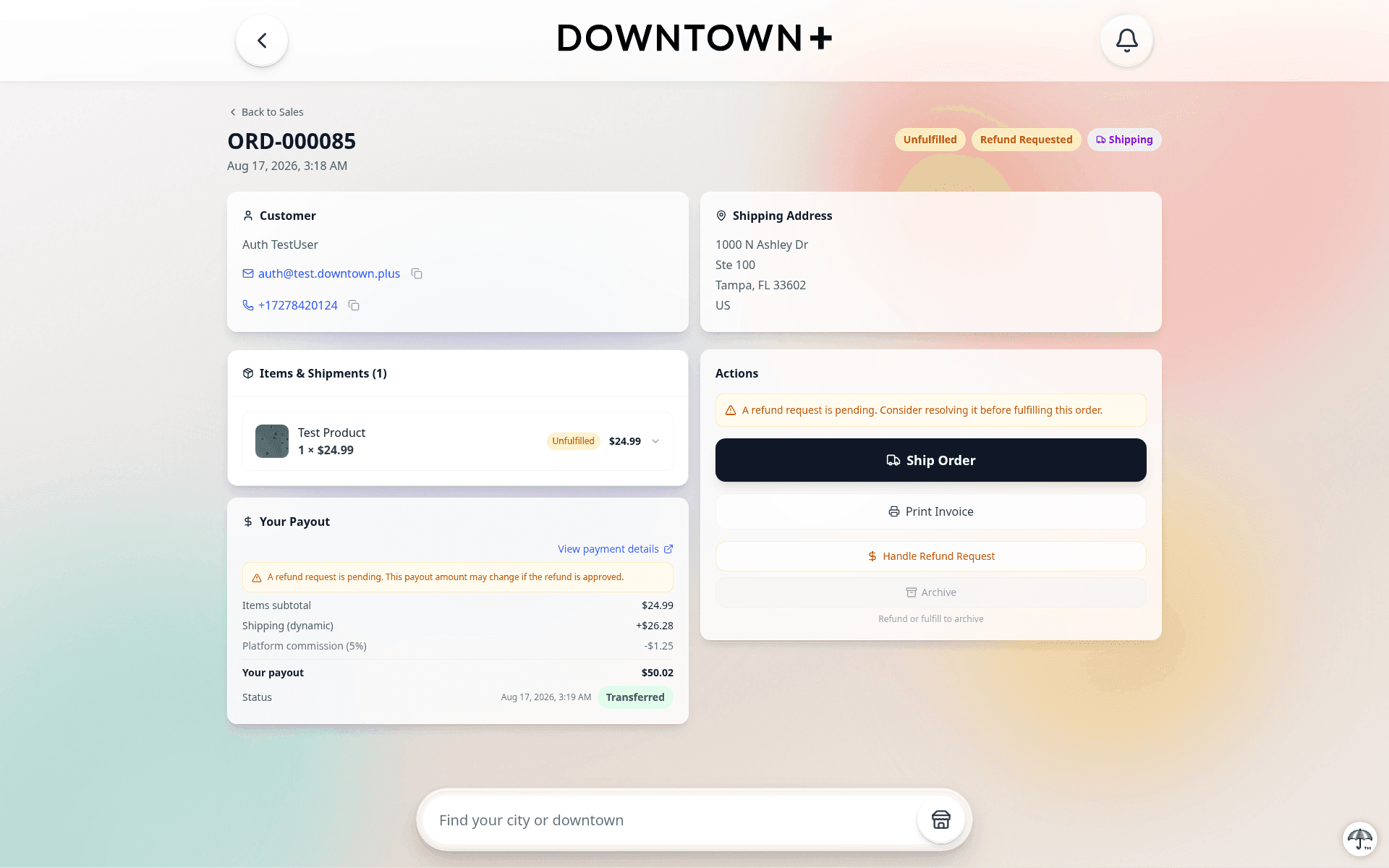
Example: $100 Sale
- Charge on your Stripe account: $100.00
- Stripe processing fees (paid by you): varies by account pricing
- Platform commission (application fee): $5.00
- You receive: $95.00 minus Stripe processing fees
Refunds & Disputes
Refunds and disputes are debited from your Stripe balance since charges happen on your account. If your balance is insufficient for a refund, Stripe places it in a pending status and processes it automatically when you have funds. The platform commission is retained and not refunded.
Getting Paid
During onboarding, you connect your Stripe account through a secure authorization flow. Payouts follow your Stripe account's payout schedule (typically 2-3 business days). View your balances and payout history directly in Settings → Connect.
Detaching a Profile
Detaching a profile from a shared Stripe account stops payouts for that specific profile, but your Stripe account remains active for your other profiles. Products from detached profiles are hidden from the shop until re-linked.
Account Health
Stripe continuously monitors your account for compliance and verification requirements. If your account needs attention, your products and marketplace deals are temporarily hidden from public listings and you'll see a notification in Settings → Connectexplaining what's needed. Standard (informational) deals are not affected. They stay visible because they don't involve a transaction.
- Verification needed: Stripe may request updated documents or information. Complete the steps shown in your Connect settings to restore your account.
- Under review: Stripe is reviewing your information. No action needed. This usually resolves within a few days.
- Account paused: Contact support for assistance.
Once the issue is resolved, your products and marketplace deals automatically reappear. No manual action is needed beyond completing any requested verification. Customers who saved one of your marketplace deals while you were disconnected will see a "Seller unavailable" badge until you reconnect.
Shipping Adjustments
After a label is purchased, carriers (USPS, UPS, FedEx) sometimes re-bill the platform for weight or dimension corrections discovered when the package is scanned. These are called shipping adjustments. Because Downtown+ is the mailer of record for platform-purchased labels, the carrier bills us. And because the adjustment is caused by a mismatch between the declared and actual weight or dimensions of your product, we pass that cost through to you. USPS adjustments are detected automatically through carrier API polling. UPS and FedEx adjustments are imported by the platform from carrier billing reports.
Your Dashboard shows a banner with your outstanding balance, a status badge for your current tier, and the number of pending adjustments. In the warning and suspended tiers it also shows a threshold meter marking how close you are to the suspension limit, with labeled ticks for the warning and suspension amounts.
Click View detailson the banner to expand the full picture in place (no separate window): the complete list of pending adjustments in a scrollable list that keeps your orders in view. Each row shows the order number (linked to the order detail page), the carrier, a human-readable reason with a short explanation of why the carrier charged you, the declared weight versus the carrier's measured weight (when available), the package (tracking) number the adjustment applies to, and the dollar amount. The expanded panel also has a collapsible Payment Historysection showing adjustments you've already paid or that were voided, going back 90 days.
Outstanding Balance Tiers
Your dashboard banner changes color and content based on how much you owe. Shipping adjustments never touch your payouts or your existing orders, and below the suspension threshold nothing changes for shoppers. Once you cross into suspension, your dynamic-shippingproducts (the ones that need a platform label) are temporarily hidden from the shop and can't be added to a cart until you pay the balance off. Your flat-rate, free, pickup, and digital products stay live, and you can still ship your existing dynamic orders by switching to manual fulfillment.
- Informational: A neutral gray banner with the amount owed plus a short explainer: carriers sometimes re-bill after scanning your package. No impact on label purchases. Pay when convenient.
- Warning: The banner turns yellow and a progress bar appears showing how close you are to the suspension limit. An inline notice also appears on label-purchase pages. Label purchases still go through, but clearing the balance now prevents a block later.
- Suspended: The banner turns red, the progress bar fills completely, and new label purchases are blocked until the balance is paid off. Your dynamic-shipping products are temporarily hidden from the shop and can't be purchased, while your flat-rate, free, pickup, and digital products stay live. The label-purchase page shows the pending adjustments with carrier and reason details, a Pay Now button, a Fulfill Manually button so you can still ship existing dynamic orders with your own tracking, and a link back to the dashboard. Existing orders and payouts are unaffected.
Thresholds are set by the platform and may change over time. Your dashboard banner and progress bar always reflect your current tier.
Paying Off Adjustments
Click Pay Now on the dashboard banner (or the Pay button inside the detail drawer). A dialog opens with an itemized breakdown of every pending adjustment: carrier, truncated tracking number, reason, and per-row amount. Below the list, a total line and a Stripe payment form pre-filled with your saved card. Confirm the payment, and once it processes, the banner disappears and label purchasing resumes immediately.
You'll receive an email receipt with the payment intent ID and a breakdown of the adjustments that were cleared. If a new adjustment lands after you start a pay-off but before it completes, it stays on your balance for the next pay-off. The amount you confirm is the amount that gets charged.