Shopping on Downtown+
Local businesses sell products directly through Downtown+. You can browse, buy, and get items shipped, pick them up locally, or download digital products.
Browsing the Shop
Visit any downtown's Shop page to see products from local businesses. Browse by category, search by name, and click any product for full details including description, photos, and shipping info.
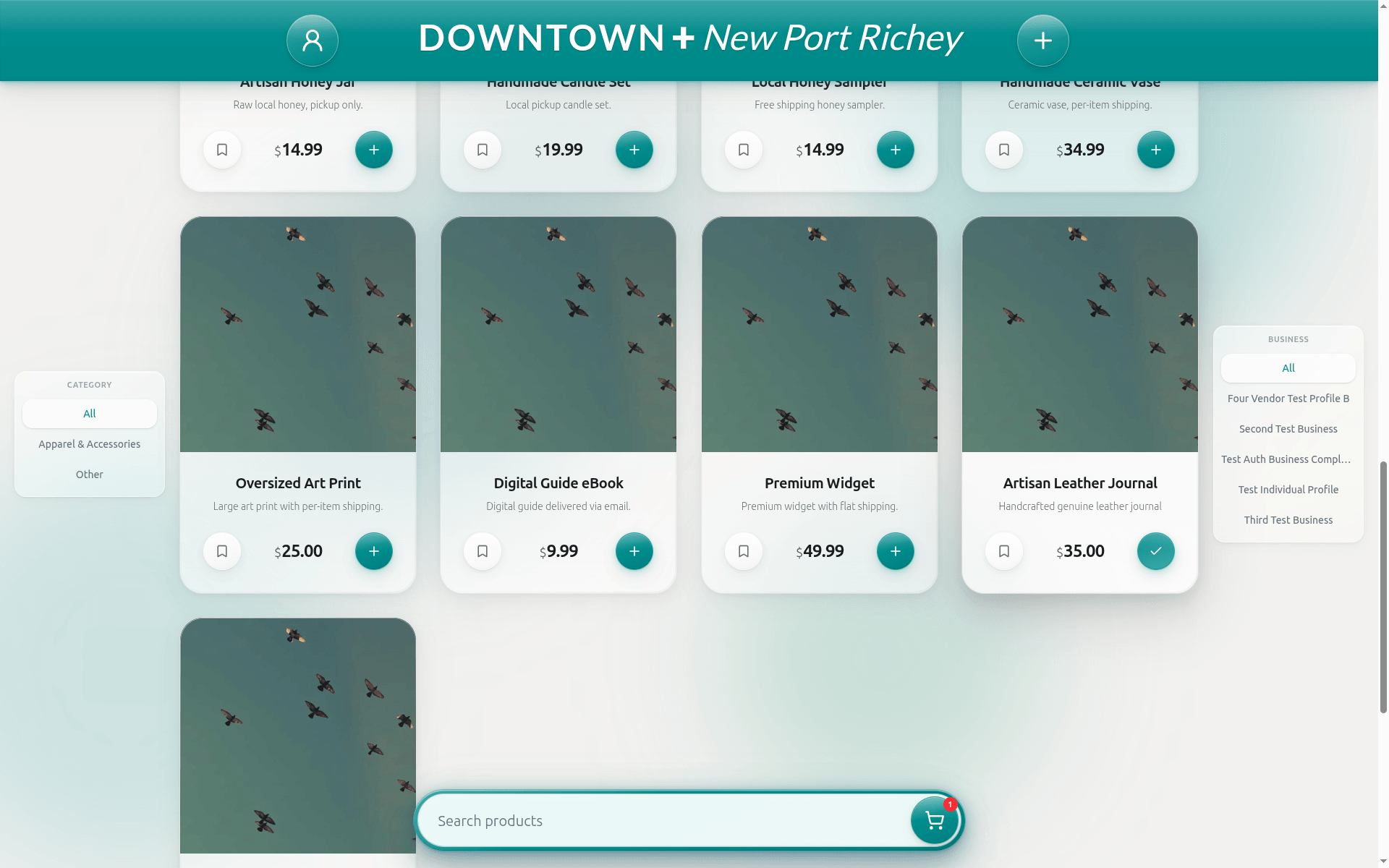
The Downtown+ Market
Visit /shopto browse products from every downtown on the platform in one place. Each product card shows a colored badge with the downtown it belongs to, so you always know where a business is based. Use the downtown filter at the top to narrow results to a single community. Clicking any product takes you to its full detail page within that downtown's shop.
You can add items from different downtowns to the same cart. At checkout, your items are grouped by vendor so each seller handles their own fulfillment. Everything else works the same as shopping within a single downtown.
Adding to Cart & Checkout
Add products from multiple businesses to the same cart. Guest carts work too. Some products have variant options like size or color. Select your preferred option on the product detail page before adding to cart. Checkout walks you through five steps:
- Contact — Enter your email so we can send your receipt and order updates
- Delivery — For each vendor in your cart, choose Pickup or Ship. Multi-vendor carts can mix both: pick up from one vendor and have another ship to you in the same order
- Shipping — Pick a carrier and speed for each shipping vendor (this step is skipped when every vendor is pickup)
- Payment — Pay securely through Stripe with tax calculated automatically
- Review — Confirm your order and receive your order number and confirmation email
What you fill in on the Delivery step depends on your choices. If every vendor in your cart is pickup, you enter just your name and phone. No shipping address needed. If any vendor is shipping, you enter a full shipping address, and your name and phone come from that form. For mixed orders (one vendor pickup, another shipping), the shipping address covers the ship vendor and your name and phone from that form covers the pickup contact too. You only fill it in once.
All checkouts accept card (Visa, Mastercard, Amex, Discover), Apple Pay, Google Pay, and ACH bank transfer. For signed-in users, Stripe offers the option to save your payment method for faster checkout on future orders.
After checkout, every order (guest or signed-in) receives a confirmation email with a secure link to track the order. Guests can use this link to view order status, item details, and shipment tracking without needing an account.
Promo Codes & Coupons
Some local businesses offer marketplace coupons: promo codes you enter at checkout for discounts like percentage off, fixed dollar off, buy-one-get-one, or free shippingon qualifying orders. Look for the "Have a promo code?" link on the checkout page to apply your code. Promo codes require a signed-in account. Guests will see the coupon input disabled with a link to sign in. Each vendor sets how many times a customer can use their coupon (defaults to once per customer).
Saved Deals
When you find a deal you like, save it to your account for later. Saved deals are bookmarks that let you apply promo codes at checkout without having to remember or type the code.
Visit /account/deals to see all your saved deals in one place. Each card shows the deal name, the business offering it, the discount, and an expiration date if the deal has one. Tap the bookmark icon on any card to unsave it.
Each saved deal card shows its usage status. Deals display "Fully redeemed" when all total uses are consumed, "Limit reached" when your personal limit is hit, or "Not yet active"for deals with a future start date. A usage counter on each card shows how many redemptions you've used out of the total allowed, so you always know where you stand before heading to checkout.
At checkout, expand the "Have a promo code?" section. Below the manual code input you'll see a Your Saved Deals button. Tap it to open a picker showing only the saved deals that apply to vendors in your cart. Hit Applynext to a deal and the discount is added to your order instantly. Already-applied deals show a green "Applied" badge so you know what's active.
The picker filters by vendor. If your cart has items from two businesses but you only have a saved deal from one of them, the picker shows that one deal. Deals from vendors not in your cart won't appear. Applied deals work the same as manually-entered promo codes: same discount, same one-coupon-per-vendor rule.
Delivery Options
Each vendor in your cart gets their own Pickup or Ship choice at checkout. Pickup is only offered when the vendor has enabled it in their Shipping settings.
- Shipped — Cost shown at checkout, tracking number emailed once shipped (USPS, UPS, or FedEx)
- Pickup — The vendor's pickup address and hours show inline when you select Pickup. You'll be notified when your items are ready to collect
- Digital — Download immediately after payment (or when the seller provides the link). Download links never expire, so you can re-download anytime from your order page. Digital products are limited to one copy per order.
What Happens When Checkout Has an Error
Occasionally something prevents checkout from completing. Downtown+ tells you exactly what went wrong and gives you clear options to fix it. Here are the situations you might see:
Item unavailable— A product in your cart is out of stock or no longer active. You'll see a card for each affected item showing what you requested versus what's available. Use the Remove button next to each item to take it out of your cart, then checkout continues with your remaining items.
Shipping not available (seller configuration)— The seller hasn't finished setting up their shipping yet, so we can't calculate a rate for their items. You can remove those items and continue with other items in your cart, or contact the seller directly to let them know.
Shipping not available (address)— No shipping options are available to your address from one or more sellers. Try entering a different shipping address, or remove those items from your cart.
Temporary shipping error— Something went wrong while calculating shipping rates. This is usually temporary. Click the "Try Again" button to retry, or go back and check your shipping address.
Tax calculation error— Sales tax couldn't be calculated for your order. Use the "Retry Tax Calculation" button to try again. This is typically a brief service delay and resolves on retry.
Payment account not ready— A seller's payment account isn't set up to accept payments yet. You can remove that seller's items and continue checking out with items from other sellers.