Shipping Configuration
Each product needs a shipping setup. Choose the type that fits your product:
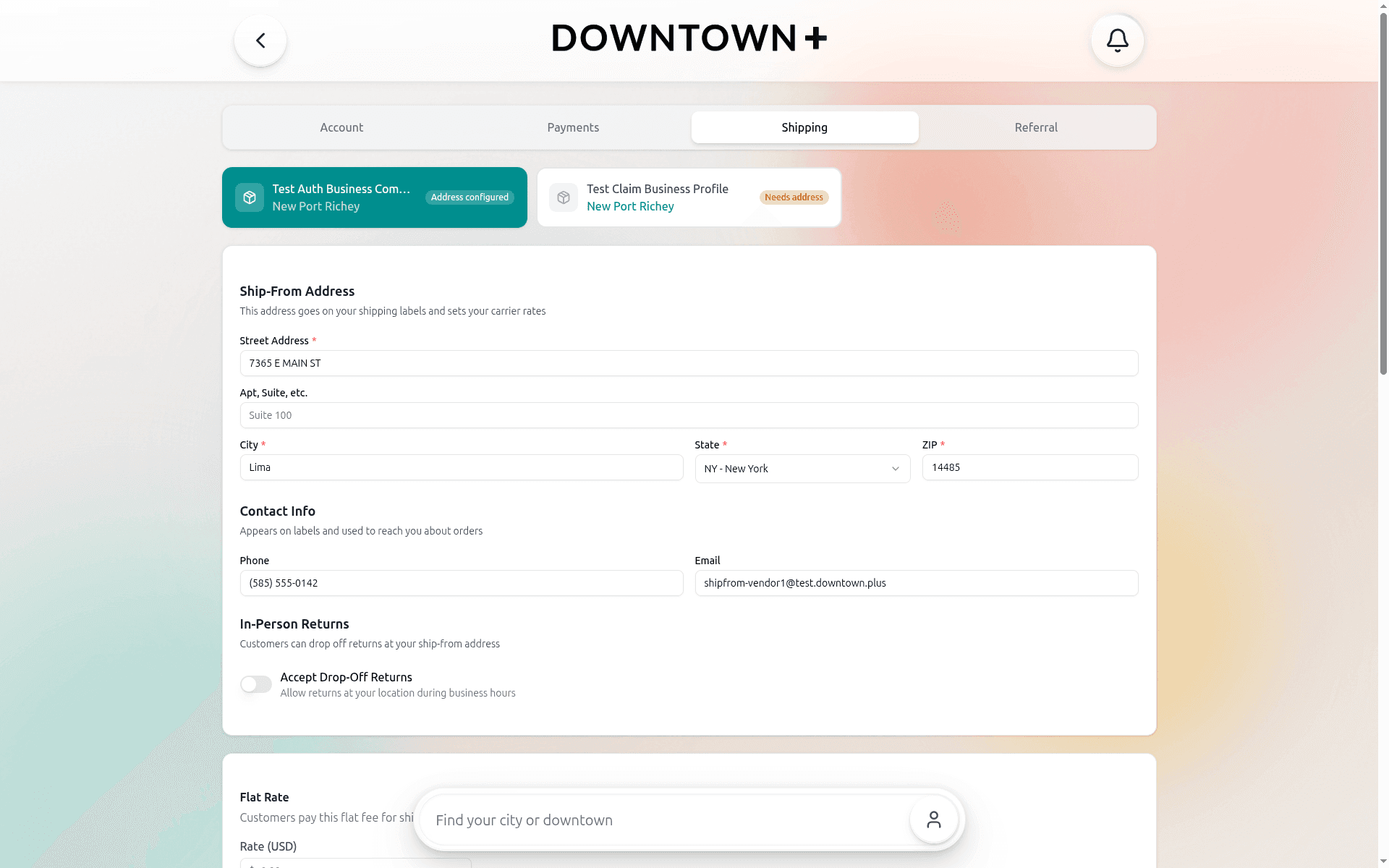
Before listing any physical product, configure your ship-from address in Business Settings → Shipping. This is used for shipping labels, carrier rates, and tax calculation. All physical shipping types (flat rate, per-item, free, and dynamic) require it. Digital products are exempt.
Dynamic Shipping
Real-time carrier rates from USPS, UPS, and FedEx. Customers pick their carrier and speed at checkout. You buy a shipping label through the platform.
- Enter product weight (in ounces) and dimensions (in inches)
- Set up box sizes in Business Settings → Shipping (ship-from address is required for all physical types)
- Mark items as fragile if needed
- Best for: most physical products
Flat Rate Shipping
An account-level flat rate set in your shipping settings. Customers pay this amount once per order from your shop, regardless of how many items they buy or where they live. You ship using your own method and carrier.
- Set your flat rate in Business Settings → Shipping
- Charged once per order, not per item
- Best for: shops where most orders ship in one package
Per-Item Shipping
You set a shipping price on each product. Customers pay that rate multiplied by the quantity they order. You ship using your own method and carrier.
- Set the per-item rate on each product during creation
- Example: $5 per-item rate × 3 units = $15 shipping
- Best for: items that each need their own packaging (candles, pottery, etc.)
Return Policy Default
The Accept returns toggle sets a store-wide policy that automatically routes physical-item refund requests through the return flow. When enabled, refund requests for physical items are approved instantly as return-required without manual review. The customer ships the items back before any refund issues. Digital-only requests always skip the return flow. Configure this in Business Settings → Shipping.
Ship-From Email
The email address in your shipping settings is used for both shipping labels and order notifications (new orders, refund requests).
- Auto-populated from your account email when your business is approved
- Override it in Business Settings → Shipping to use a shared inbox (e.g., orders@mybusiness.com)
- All vendor order emails go to this address
Preferred Carrier
In Business Settings → Shipping, you can select a preferred carrier (USPS, UPS, or FedEx). When a customer checks out, only your preferred carrier is queried. There is no automatic fallback to other carriers.
- If your preferred carrier returns rates, those are shown to the customer
- If the preferred carrier is unavailable or returns no rates, the customer sees no shipping options for your items. Switch to All Carriers or pick a different carrier to fix this
- Select All Carriers to query all carriers equally (default behavior)
- This only affects rate fetching. Customers can still select any available rate at checkout
Automatic Tracking Updates
After you purchase a shipping label through the platform, tracking is fully automatic. There is nothing to configure.
- Status changes (in transit, out for delivery, delivered, exception, etc.) appear on the order automatically
- Customers receive a delivery confirmation email when their package is delivered
- UPS and USPS tracking updates are delivered in real-time via carrier webhooks
- FedEx tracking updates are delivered by polling the FedEx tracking API every 30 minutes, so updates may have up to a 30-minute delay compared to UPS and USPS
This applies to all labels purchased through the platform regardless of carrier (USPS, UPS, or FedEx). Vendors who ship on their own (flat rate or per-item shipping) manage tracking outside the platform.
Per-Variant Shipping Rates
If your product has variants (e.g., sizes or colors) and uses per-item shipping, you can set a different shipping rate on each variant. Variants without a custom rate inherit the product-level default.
- Open the variant grid and enable the "Shipping rate" column
- Enter a custom rate for variants that cost more or less to ship
- Leave a variant blank to use the product default rate
- Example: "Small" ships for $3, "Large" ships for $8, others use the product default of $5
- Use "Set where" to bulk-update rates across variants by option value
Free Shipping
No charge to the customer. You absorb shipping cost.
- Best for: lightweight items, promotions, or local delivery
Local Pickup
Pickup lets customers collect their order from your location instead of paying for shipping. It's offered alongside shipping on a per-vendor basis at checkout. Every shopper sees a [ Pickup | Ship ] toggle for your items, and the two options can coexist on the same cart when multiple vendors are involved.
Enable pickup in Business Settings → Shipping. Two fields are required before the toggle will appear at checkout:
- Ship-from address — Doubles as your pickup address. Shown to customers who pick Pickup for your items
- Pickup hours — Free-text field (e.g. "Mon–Fri 10am–6pm, Sat 10am–2pm"). Shown alongside the address
Pickup applies at the vendor level. All of your items on a given order are either pickup or shipping, not mixed per line. Shipping charges are skipped entirely for your portion of any pickup order, and no carrier label is needed. When the customer places the order, you'll mark it "Ready for Pickup" and then "Picked Up" from your dashboard, independently of any other vendors on the same order.
Pickup Only
When a product is marked Pickup Only, customers must collect it from your store. No shipping option is offered for that product. This is different from the standard pickup toggle, which lets customers choose between shipping and pickup at checkout. Pickup Only removes the choice entirely.
To set it up, open the product form and go to the Shipping section. Toggle Available for Pickup ON, then toggle Pickup Only ON. The Pickup Only toggle only appears after Available for Pickup is enabled.
- Customers see an In-store pickup badge on the product page and in their cart. There is no ship/pickup toggle
- At checkout, the shipping step is skipped for pickup-only items and shipping cost is $0
- Your ship-from address (configured in Business Settings → Shipping) serves as the pickup location
- Best for: bulky items, prepared food, or anything that can't be shipped
Digital Delivery
No physical shipping needed. For downloadable products like PDFs, music, templates, and more.
- Automatic delivery — Upload your file during product creation (up to 100MB). Customers get a download link immediately.
- Manual delivery — You provide a download link or URL after each purchase.
- Supported formats: PDF, ZIP, EPUB, MP3, MP4, PNG, JPG