Post News Articles
Share news, announcements, and community stories with your downtown community.
Requirements
News posting requires a verified individual profile. Business profiles alone are not eligible. You need an individual profile with an active verification subscription. See Get Verified.
Creating an Article
- From your Dashboard, click "Add News"
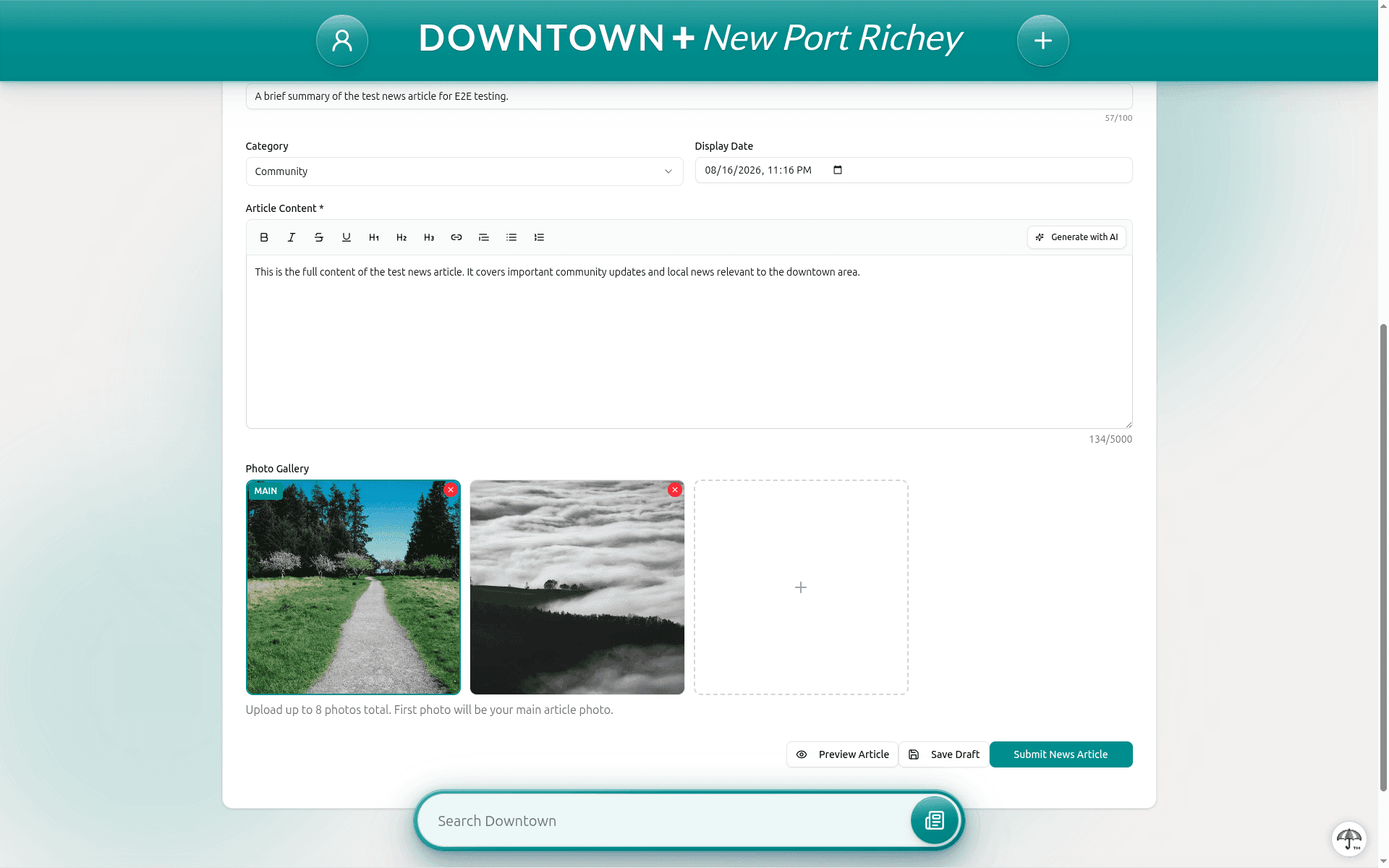
- Enter the article title and a summary (up to 100 characters). Summaries cannot contain URLs, email addresses, phone numbers, or social media handles.
- Choose a category for your article
- Write the full article using the rich text editor (supports formatting and links)
- Upload a featured image and up to 7 gallery images
- Optionally add tags, a source website link, and a video link
- Set the display date if you want to backdate or schedule the article
- If you're sharing someone else's work, toggle off "I am the original author" and credit the source
- Submit for review, or save as a draft to finish later
Articles are reviewed before being published. Keep your content relevant to the local community.