Returns & Refunds
Most local vendors on Downtown+ accept returns and will refund you once they receive the items back. Returning something is a normal step, not a hurdle. Request the return, pack it up once the seller approves, and the refund is issued as the packages arrive.
Guest Orders and Refunds
If you checked out as a guest, you can view your order through the secure link in your confirmation email, but requesting a refund or return requires an account. When you are ready to file a request, create a Downtown+ account with the same email address you used at checkout. Your guest orders are automatically claimed into your purchase history on signup, and the full refund and return flows described below become available immediately. No manual steps are needed to link the orders; the platform matches them by email once your account is verified.
Where Refund Actions Live
Every refund and return flow starts from your purchases page inside each vendor's summary card. Click the Support button next to the seller name on your order to open the support page, where you pick items, give reasons, and review the return policy. The refund form appears right on the support page. The vendor then decides whether to refund directly or require a return first. On multi-vendor orders each vendor has their own Support button and their own panel, so you can request from one vendor without affecting the others.
How the Single Request Works
There is one action: Request refund. You pick items, give per-item reasons, review the seller's return policy, and submit. The vendor then decides the next step: refund directly, or require you to ship the items back first. You don't need to choose between “return” and “refund” up front.
When you open a request, you also choose the quantity per item. If you ordered three of something and only two have an issue, set the stepper to 2 and the seller will see exactly that. The remaining unit stays refundable until it too is used up, so you can always come back later if something else goes wrong.
Reason Categories
Each item in your request needs a reason category so the seller understands the issue and Downtown+ can track quality patterns. Additional details are optional for every category except Other, where a written explanation is required.
- Doesn't fit — The size, fit, or dimensions do not match your expectations
- Arrived damaged — The item was damaged in transit or arrived broken
- Defective / doesn't work — The item is faulty or does not function as intended
- Not as described — The item is significantly different from the listing
- Wrong item received — You received a different item than the one you ordered
- Missing parts or accessories — Components or accessories are missing from the package
- Quality not as expected — The item's quality does not match what was advertised
- Arrived too late — The item arrived after you needed it
- Changed my mind — You no longer want the item
- No longer needed — You found an alternative or the need passed
- Other reason — Any reason not covered above; a written explanation is required
How a Return Plays Out
- You click the Support button next to the seller name on your purchases page and submit a return or refund request
- The vendor has about 7 days to respond: approve and refund immediately, require a return first, or deny with a written reason
- If approved as a refund-only, the refund processes immediately to your original payment method. Nothing to ship
- If a return is required, the support page updates with a return section where you pack your items into one or more packages and tell the seller how each one is getting back to them
- The seller confirms they received each package, inspects the items, and then processes the refund. Each package refunds independently
- If your request is denied, or the seller refunds less than you asked for, you have 14 days to escalate to the Downtown+ team for a final decision
If the vendor processes your refund before you ship the return, you don't need to send anything back. The support page will show a “Your refund has been processed” message instead of the package builder. This can happen when a vendor confirms receipt in person, resolves the issue over the phone, or decides to issue the refund as a courtesy. The items they covered are marked Refunded on your order, and any remaining items still appear in the builder if a return is still needed.
Packing Your Return: Multi-Package Builder
Once the seller approves a return, the support page shows a Pack your returnsection with a multi-package builder. You don't pick a return method when you submit the request. You pick it here, per package, after the seller agrees.
You can split your approved items into as many packages as you need. For each package you pick one of two methods:
- Ship via carrier — You buy a label from any carrier (USPS, UPS, FedEx, or any other) and enter the carrier and tracking number here. Tracking is required before you can submit the package.
- Drop off — You bring the package to the seller during their posted business hours. You pick a planned drop-off date (required) and no tracking is needed. The seller marks items received on the spot. Drop-off is only offered when the seller accepts drop-off returns for their location.
You can mix methods across packages. For example, ship one heavy item via UPS and drop off the rest on Saturday. Each package only needs to satisfy its own method's requirements before you submit.
You don't have to pack everything at once. Ship what you can now — the return stays open and you can come back to pack the rest later. Each time you submit, the builder updates to show what's already shipped and what still needs packing. The return only advances to In transit once every approved item has been packed and at least one package was shipped via carrier.
If you don't ship everything within 15days of the seller's approval, anything already shipped still counts — the seller can confirm receipt and issue your refund for those items. Any units you never packed are forfeited: they show as Expiredon your order and can't be submitted again. Any other units on the same line that weren't part of the expired return stay requestable. If nothing was shipped at all by the deadline, the return closes automatically.
Mixed Returns: Physical and Digital Together
If your return request mixes physical items with digital items from the same seller, your support page shows the digital items in their own Digital itemssection above the packing builder. You don't pack them, ship them, or allocate them to a package. There's nothing physical to return. The “X of Y approved items packed” counter only tracks the physical items, so you can submit your packages as soon as those are allocated. The seller decides whether to refund each digital line when they process the refund, and the status next to each digital item flips to Refunded once they do.
Return Status Tracking
All return status updates appear on the same support page at Your orders → Support, walking your return through its stages with a vertical progress timeline:
- Pending review — Waiting on the seller to approve, deny, or require a return
- Approved — ready to pack — The seller approved and you can build your packages in the multi-package builder
- In transit — You submitted your packages and they are on their way back
- Inspecting — The seller has received one or more packages and is reviewing them
- Refund in progress — Some packages have refunded; others are still being inspected. Each package can refund independently, so expect more than one refund email if you split the return across multiple packages
- Refund issued — The full expected refund has landed (5–10 business days to settle with your bank)
- Denied — The seller declined with a written reason; you have 14 days to escalate
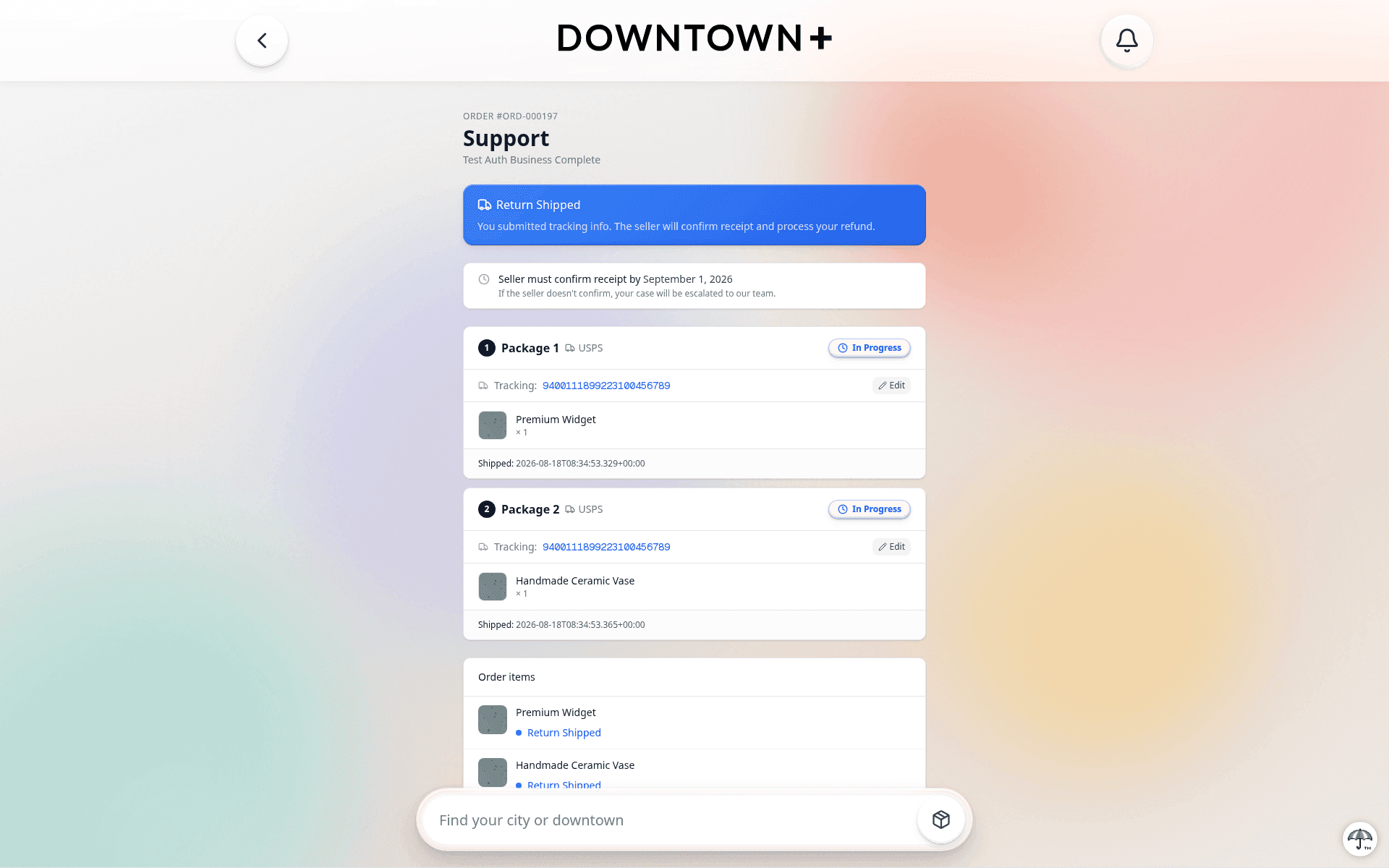
After each submit, a Packed & shippedsummary appears above the builder showing what you've already sent — each package, its carrier/tracking info or drop-off date, and its current status. Once every item is packed, the builder disappears and only the summary remains.
As you enter your carrier and tracking number in the builder, a clickable tracking link appears so you can verify it before submitting. After submission, the same link shows on your support page and opens the carrier's tracking page in a new tab. This works for USPS, UPS, and FedExpackages. If you used DHL or another carrier, the tracking number still appears but as plain text — you'll need to look it up on the carrier's site directly.
Carrier Tracking on Shipped Return Packages
Each shipped return package shows two status indicators side by side. The first is a workflow status pill that reflects where the return stands in the refund process: In Progress while the vendor is handling it, or Resolved once the refund has been processed. The second is a carrier tracking pillthat shows real-time updates from the shipping carrier — In Transit, Out for Delivery, Delivered, and so on. Clicking the carrier pill opens the carrier's tracking page in a new tab.
These two indicators are independent. A package can show Delivered by the carrier while the workflow still reads In Progress— that means the vendor has the package but hasn't processed the refund yet. Both pills update on their own timeline: carrier status comes from the shipping carrier's scans, workflow status changes when the vendor takes action on the refund page.
The carrier tracking pill only appears on shipped packages with carrier data available. Drop-off packages don't have carrier tracking, so they show only the workflow status pill.
If you made a mistake entering the carrier or tracking number on a shipped package, you can correct it after submission by clicking the edit button on that package's card. You can update the carrier and tracking number, and the tracking link updates automatically. Packages marked as delivered cannot be edited, and drop-off packages don't have tracking to correct. If you need help with a package you can't edit yourself, the Downtown+ support team can also update return package tracking on your behalf.
Returns Are Standard, Not a Barrier
Many vendors require physical items to be returned before a refund is issued. This is normal practice for physical goods, not an exception. Sellers publish their terms up front: a Refund & Return Policy section on their business profile, and the same text behind the help icon on the Order Summary at checkout.
Only items that have actually been delivered to you can require a physical return. If something on your order hasn't shipped yet or hasn't been fulfilled, the seller can refund those items immediately without asking you to send anything back. The return requirement applies only to items already in your hands.
Digital items are exempt from return policies. Since digital products (downloads, e-books, digital guides) have nothing physical to return, sellers can refund digital items directly without asking you to ship anything back.
Partial Refunds and Per-Item Adjustments
When the seller processes your return, they review each item individually. If an item came back damaged, missing parts, or otherwise not in the condition they expected, the seller can adjust that item's refund amount down — including to $0, which means they reviewed it and decided not to refund it. Whenever an item's refund amount differs from what you requested, the seller is required to write an explanation of at least 10 characters for that specific item.
On the support page, each adjusted item shows the seller's written explanation so you can see exactly why the amount was less than you expected. Items refunded at the full requested amount don't show a note. There is nothing to explain.
If you disagree with a $0 override or a reduced amount on any item, you have 14 days from the decision to escalate the request to the Downtown+ team for review using the “Escalate to Platform” button on the support page.
Declined, Denied, or Refunded: What Each Means
When you look at your items, three outcomes can show up, and they are not the same thing. Knowing which is which tells you exactly what happened to your money and what you can still do about it. The support page spells each one out in full. Your order page carries the short version on the item itself.
- Refunded — Money came back to you for that item. The amount shows next to it, and if the seller refunded less than the full price, their note explains why.
- Declined — The seller looked at that one item and resolved it at $0. No money came back for it. This is a per-item decision, so the rest of your request can still be approved and refunded normally. The support page shows $0.00 and the seller's note. On your order page the item's money badge reads Declined with no amount, because nothing came back.
- Denied — The seller rejected the whole request. Nothing was refunded. The units that were denied are used up, but if a line had more units than were in the request, those remaining units stay requestable. Your path forward on the denied units is to escalate to Downtown+.
The short version: Declined is one item resolved at zero, Denied is the entire request turned down, and Refundedis money on its way back. A declined item never shows as “Refunded” on your order, because no refund happened.
Adjusted Refund Amounts
If a seller approves your request but refunds a different amount than you asked for, they are required to enter a written explanation of at least 10 charactersdescribing the adjustment. The explanation appears on your refund confirmation so you understand the difference. If the adjustment doesn't feel right, you still have 14 days from the decision to escalate the request to Downtown+ for review.
Denied Requests Need a Reason
Sellers who deny your request are required to include a written reason of at least 10 characters. You'll see the denial reason on the support page along with a countdown of how many days remain in the 14-day escalation window. To escalate, go to the support page and click “Escalate to Platform.” This sends the request to the Downtown+ team, who will review and make a final call.
The window is 14 calendar daysfrom the seller's decision, and it's firm. Report it inside that window and Downtown+ takes a look. Once the 14 days pass, the denial is final. The “Escalate to Platform”button goes away, and the support page tells you the window has closed. So if a denial doesn't sit right with you, don't wait it out.
After a Denial: Requesting Refunds for Remaining Items
A denial only uses up the units it covered. If a denied line had more units than the seller reviewed, or your order has other items you haven't requested a refund for yet, you can still open the support page and select those units normally. A line only appears in the picker as a disabled row with a “Previously denied” label once every one of its units has been used up.
If you disagree with the denial itself, use the “Escalate to Platform” escalation option on the support page within 14days. Escalation is the path for disputing the vendor's decision on the denied units. You can't re-request the exact units that were denied, but any remaining units on the same line can still be requested normally.
Cancelling a Request From the Support Page
Once you submit a refund request, all follow-up actions live on the support page, accessible by clicking the Support button next to the seller name on your order. Cancelling a pending request, cancelling an approved return, and escalating a denied request all happen there. None of these actions appear inline on the order history page.
Cancelling a pending request: If you change your mind before the vendor has acted, the support page shows a “Cancel request” button. No refund is issued, no items move, and the request closes cleanly with no impact on the vendor. Once the vendor approves, denies, or moves the request into a return state, the cancel option disappears.
Cancelling an approved return:If the vendor approved a return but you haven't shipped items back yet, the support page shows a “Cancel return” button. This closes the return without any refund.
Cancelling has limits. The moment you ship a return, or the moment the seller issues even a partial refund on it, the return can no longer be cancelled. At that point it has to run its course: ship the rest of the items and let the seller finish, or let the return time out on its own. There is no cancel button on a return you've already shipped, and none on a return that's already been partly refunded.
Vendor-Initiated Refunds
Sellers can also refund items from their side without waiting for you to file a request. For example, if they run out of stock or spot a fulfillment issue. The refund appears as a Refundedline inside that vendor's summary card on your purchases page. You don't need to take any action. The money is already on its way back.
When a seller refunds you, they also choose which shipping charges to return: carrier labels, their flat shipping fee, and any per-item shipping rates all show up as individual toggles on their side. On full refunds, every refundable shipping charge is pre-selected for them; on partial refunds they pick the specific shipping that applies to the items being refunded.
On orders where the seller bought the shipping label through Downtown+, the platform gives the seller two options for the shipping portion of your refund: return the full shipping amount you paid, or return a partial amountat their discretion (which can be zero on a partial-item refund). When an entire order is cancelled this way, the default behavior is to send the full shipping amount back. On a partial-item refund, the seller decides case by case. If you're unsure why the shipping portion came back the way it did, reach out to the seller through the order page.
Automatic Order Cancellation
Downtown+ doesn't have a separate “cancel” button for sellers. Instead, the order status follows from the refunds:
- Cancelled — A refund (or a series of refunds) ends up covering every item on the order
- Partially refunded — Refunds cover at least one item but not all of them
If your items haven't shipped yet and the seller wants to cancel, they just issue a full refund on your order and the status flips automatically. You'll receive the same refund emails you would for any other refund.
How Refunds Work
Refunds are debited from the vendor's Stripe balance. If the vendor's balance is insufficient at the time of the refund, Stripe places the refund in a pending status and automatically processes it once the vendor has sufficient funds. The Downtown+ platform commission is not refunded from the vendor's payout, but the tax portion of your refund is reversed in full, including the platform fee on tax. You get back every dollar of tax you paid on the refunded items.
A full refundmeans the total vendor payment — items plus shipping — is returned to you. If the seller refunds every item but keeps part or all of the shipping charge, that counts as a partial refund even though every product was covered. The order only shows Refunded when the cumulative refund total equals the full amount you paid to that vendor.
For partial refunds on orders with mixed-taxability items (for example, digital + physical, or clothing + non-clothing in states where clothing is exempt), Downtown+ refunds the exact tax paid on the specific items you get back, not a blended average. A digital-only refund in California, for instance, returns the product price without tax, because the digital item was never taxed to begin with. On single-tax-treatment orders (where every item is taxed the same way), tax is refunded proportionally and nets the same total amount.
If your order included a coupon discount, partial refunds reflect the proportional discount for the items being refunded. You are not penalized for the full coupon amount when only some items are returned.
Sales Tax on Returns
Sales tax is automatically refunded proportionally with any return or partial return. There is no separate tax-refund request to file. When a refund is issued, the corresponding tax is reversed in our records and returned to your payment method along with the rest of the refund. For more on how Downtown+ collects and refunds tax, see How Sales Tax Works on Downtown+.
Refunds Issued in Installments
Sellers can issue a refund in multiple installments rather than all at once. For example, refunding shipping first and then a product adjustment later. Multi-package returns also refund per package as each one is inspected. When that happens, you receive a separate refund notification for each installment.
Each follow-up email is clearly labeled as an additional refund and shows the cumulative total refunded so far for that order, so you can always see how much has been returned without having to add the amounts yourself.
Where Refund Amounts Appear
On your purchases page, refund amounts are shown inside each vendor's summary card as a Refunded (or Partial Refund) line, not as a pill on the order header. In multi-vendor orders, the refund line only appears inside the summary card of the vendor that issued the refund, so it's always clear which vendor the refund came from.
The detailed refund breakdown appears on the same Your orders → Support page. It shows each package, what was refunded on each item, any per-item adjustment notes the seller wrote, and the running total across all installments.
Additional Items Refunded Outside Packages
Sometimes a vendor refunds items that weren't part of any return package you shipped back. When that happens, the support page shows an Additional items refunded card listing those items with their quantities. This keeps the package-by-package breakdown accurate while still showing you the full picture of what was refunded.
Damaged or Lost Shipments
If your package arrives damaged or never arrives, contact the vendor through the order page. The vendor files a claim with the carrier on your behalf and processes your refund through the standard refund request flow described above.